Introduction
For homeowners in the United States, the Dyson 360 Vis Nav is Dyson’s main robot vacuum cleaner. It is designed to vacuum carpets and hard floors, map rooms, detect dirt, and clean close to walls. It does not mop, and it does not use an automatic dirt-emptying dock.
The Dyson 360 Vis Nav may suit a U.S. home with mixed flooring, pets, or tight spaces. However, its tall body, higher price than many basic robot vacuums, and lack of a mop or self-empty base are important limits. This guide explains how it works, what it can and cannot do, how to set it up, and who should consider it.
Product details, stock, software features, and prices may change. Check the official Dyson U.S. product page before buying.
What Is the Dyson 360 Vis Nav?
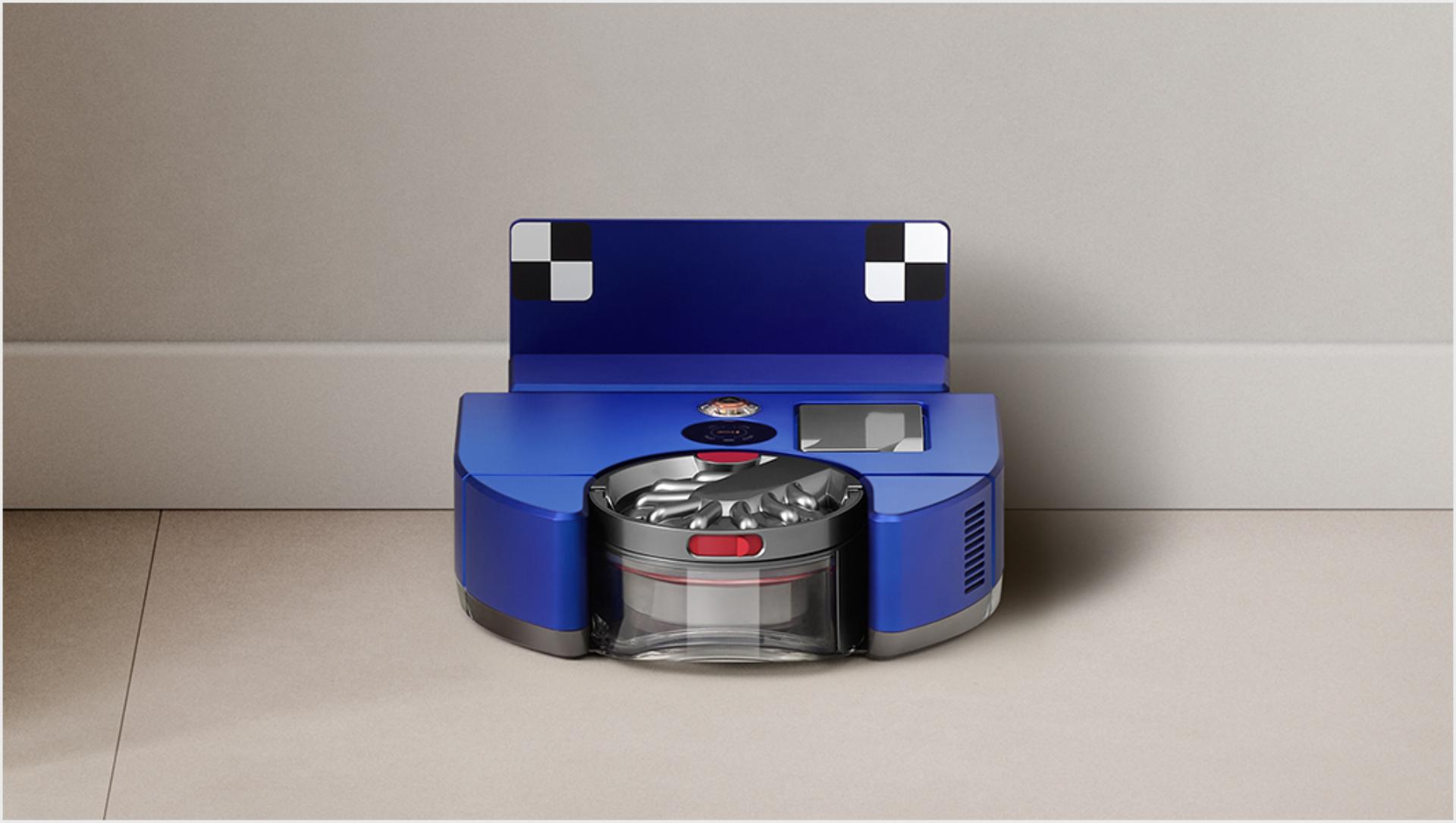
The Dyson 360 Vis Nav is a robot vacuum made for autonomous floor cleaning. It uses cameras, sensors, mapping software, and a motorized brush bar to move through rooms and collect dust and debris.
Unlike a basic random-path robot, the 360 Vis Nav builds a map of the home. Through the MyDyson app, users can divide the map into rooms, set cleaning zones, and create areas the robot should avoid.
The name “360 Vis Nav” refers to its navigation system. Dyson says the robot uses a 360-degree vision system to recognize its surroundings and plan routes. This helps it clean in an organized pattern rather than moving without a clear map.
Key features
- Vacuum cleaning for carpets and hard floors
- Camera-based navigation
- Room mapping through the MyDyson app
- Dirt detection
- Automatic suction adjustment in supported cleaning modes
- A brush bar designed to clean across different floor types
- A side-mounted air duct for cleaning close to walls
- Several cleaning modes, including Auto, Quick, and Boost
- Scheduled cleaning
- No-go zones and room selection
- Washable filter and a removable dust bin
The 360 Vis Nav is not a robot mop. It also does not wash its own mop pad, refill water, or empty its dust bin into a large base station.
Dyson 360 Vis Nav Specifications at a Glance
The table below summarizes commonly listed U.S. specifications. Confirm the exact figures on Dyson’s current U.S. support or product page because specifications and regional packages can change.
| Feature | Dyson 360 Vis Nav |
|---|---|
| Main function | Robot vacuum |
| Floor types | Carpets and hard floors |
| Mopping | No |
| Navigation | 360-degree vision and onboard sensors |
| App | MyDyson app |
| Dust-bin size | About 0.57 liters |
| Maximum stated run time | Up to about 65 minutes, depending on mode and conditions |
| Charging time | About 2.5 hours |
| Height | About 4 inches |
| Width | About 9.8 inches |
| Self-emptying dock | No |
| Filter care | Washable filter |
| Voice assistant control | Check current U.S. app and device support |
Run time is not a fixed promise for every cleaning job. Strong suction, thick carpet, Boost mode, heavy dirt, and repeated passes can reduce battery life.
A robot that runs longer is not always the better choice. Navigation, brush design, bin size, charging behavior, and maintenance also affect daily use.

How the Dyson 360 Vis Nav Cleans
The Dyson robot vacuum combines several systems. Each one affects a different part of the cleaning process.
Navigation and mapping
The robot uses cameras and sensors to understand the room. It maps the home as it moves and uses that map to plan cleaning paths.
Mapping is useful because it lets you:
- Select a specific room
- Clean a defined area
- Set a schedule
- Create no-go zones
- Review the cleaning map in the app
The robot still needs a clear view of the space. Bright light, reflective surfaces, dark objects, cords, and furniture can affect how any camera-based robot behaves. Mapping also works best when the charging station has a clear area around it.
Dirt detection
Dyson includes a dust sensor system that can detect changes in the amount of dirt being collected. In Auto mode, the vacuum can adjust its cleaning behavior based on the detected dirt level.
This may help the robot spend more time on a dirty section of floor. It does not mean every particle is detected or that the robot can identify every type of stain, spill, or allergen.
Brush bar and edge cleaning
The brush bar agitates carpet fibers and lifts debris from the floor. It also collects loose debris from hard floors.
The 360 Vis Nav has an edge-cleaning system intended to direct suction toward walls. This can reduce the strip of debris that many round robot vacuums leave along edges.
No edge system reaches every corner. A round robot can still struggle with sharp corners, narrow gaps, and areas blocked by furniture legs.
Suction modes
The robot offers different modes for different needs:
- Auto: A balance between cleaning power and battery use.
- Quick: A shorter cleaning session for light daily upkeep.
- Boost: Stronger cleaning for concentrated dirt, but with higher battery use.
For most homes, Auto is a sensible starting point. Use Boost for a small dirty area instead of running the entire home in the highest-power mode.
Dyson 360 Vis Nav Setup: Step-by-Step
Set up the charging station before mapping the home. A poor dock location can cause navigation and charging problems later.
Before starting
You need:
- The robot vacuum and charging station
- A suitable wall outlet
- A smartphone
- The current MyDyson app
- A stable Wi-Fi connection
- A clear floor area for the first map
Remove small objects, loose cables, pet toys, socks, and fragile items from the floor. Robot vacuums can pull in cords and become trapped.
Setup steps
-
Place the charging station on a hard, level surface.
Keep the station away from stairs and areas where furniture blocks access. -
Connect the station to power.
Follow the instructions included with the U.S. model. -
Place the robot on the station.
Let it charge before the first full cleaning run. -
Install or update the MyDyson app.
Use the app instructions to pair the robot with your phone and home Wi-Fi. -
Name the robot and choose your home settings.
Clear names can make room selection easier later. -
Start a mapping run.
Open doors to rooms you want included. Keep pathways open. -
Review the map.
Correct room names and divide areas if the app allows it. -
Add no-go zones.
Mark areas with cables, delicate objects, pet bowls, or loose rugs that may cause trouble. -
Run a short test clean.
Watch how the robot handles thresholds, rugs, chairs, and its return to the dock.
Signs that setup worked
A successful setup usually includes these signs:
- The robot appears in the MyDyson app.
- The map shows the main rooms.
- The robot returns to the station.
- The app shows the cleaning route or cleaning result.
- The robot can start a selected-room cleaning job.
- The charging contacts connect without repeated errors.
If mapping fails, move the station to a more open spot and repeat the run. Also check that the camera and sensors are clean.

How to Use the MyDyson App
The MyDyson app is central to the Dyson robot vacuum experience. Without the app, you may lose access to mapping, room selection, schedules, and some control features.
Room cleaning
After mapping, select one or more rooms in the app. This is useful when the kitchen needs cleaning after cooking but the bedrooms do not.
The robot may clean a room more than once when it detects heavier dirt or when a selected mode requires additional coverage.
No-go zones
Use no-go zones for places such as:
- A floor area with many charging cables
- A pet-feeding station
- A low shelf where the robot becomes trapped
- A delicate rug
- A play area with small objects
- A section with a loose threshold
No-go zones are software boundaries, not physical barriers. Check the map after moving furniture. A changed layout may affect how accurately the old zone matches the real floor.
Scheduling
A schedule can keep dust under control without daily manual starts. Choose a time when:
- People are not sleeping
- Pets are comfortable with the robot
- The floor is free of cords and small items
- The robot can reach the charging station
Do not schedule cleaning when a pet may have an accident on the floor. A robot can spread wet messes and may require immediate cleaning afterward.
Wi-Fi and app problems
If the app cannot connect:
- Check that the robot has power.
- Confirm that your phone is on the home network.
- Move the robot near the router during setup.
- Update the MyDyson app.
- Restart the app and the robot.
- Follow Dyson’s current pairing instructions.
- Contact Dyson support if the robot repeatedly loses its connection.
Wi-Fi controls can change with app updates. Use current instructions for your exact U.S. model rather than relying on an old setup video.
Cleaning Performance: What to Expect
The Dyson 360 Vis Nav is built for routine dry vacuuming. It can help reduce daily dust, crumbs, hair, and loose debris, but it does not replace every type of floor care.
On carpets
The motorized brush bar can help lift debris from carpet. Boost mode may help with a small area that needs extra attention.
Performance depends on:
- Carpet pile height
- Hair and fiber type
- Amount of embedded dirt
- Furniture clearance
- Brush-bar condition
- Cleaning mode
- Battery level
Very thick or shag-style rugs may be difficult for a tall, powerful robot. Test a small area first and use a no-go zone if the robot catches fibers or cannot move freely.
On hard floors
The robot can collect dust, crumbs, hair, and small dry debris from hard floors. It does not scrub stuck-on food or remove liquid spills.
Sweep up large sharp items before a run. Glass, nails, screws, and similar debris can damage the brush or create a safety risk.
With pet hair
The Dyson robot may help with routine pet hair on open floors. It cannot clean every hair from every rug, corner, stair, or sofa.
Homes with shedding pets may need more frequent brush-bar cleaning. Long hair can wrap around the brush, even when the brush is designed to reduce tangles.
Under furniture
The robot’s height matters. Measure the gap under sofas, beds, and cabinets before buying.
A robot that cannot fit under furniture leaves a regular cleaning gap. The Dyson 360 Vis Nav may also need extra space to turn around chair legs and other obstacles.
Maintenance and Care
Regular maintenance keeps suction and navigation more reliable. Dyson’s official manual should be the final guide for removal, washing, and replacement steps.
After each cleaning cycle
- Empty the dust bin when it is full.
- Remove visible hair from the brush bar.
- Check the wheels for tangled fibers.
- Inspect the inlet for blocked debris.
- Check the charging contacts.
- Look at the app for alerts.
Because the 360 Vis Nav does not have a self-empty station, you must empty the robot by hand. This is one of the clearest differences between it and many newer robot vacuums.
Washing the filter
A dirty filter can reduce airflow and may trigger an alert. Remove and wash it only as described in the manual.
General care rules include:
- Use cold water unless the manual says otherwise.
- Do not use detergent.
- Let the filter dry fully before reinstalling it.
- Do not run the robot with a wet filter.
A filter that feels dry on the outside may still hold moisture inside. Installing it too soon can damage the vacuum.
Cleaning the sensors and camera
Wipe the camera and sensors with a soft, dry cloth. Dust, fingerprints, and smears can affect mapping and obstacle detection.
Do not spray cleaner directly onto the robot. Avoid abrasive cloths and liquids near electronic parts.
Replacing parts
Use parts made for the exact Dyson model and region. A filter or brush from another Dyson vacuum may not fit or work correctly.
Check Dyson’s U.S. support pages for current instructions, warranty terms, and replacement availability.

Common Dyson Robot Vacuum Problems and Fixes
Start with simple, safe checks. Stop using the robot if you smell burning, see damaged wiring, or notice unusual heat.
The robot will not start
Possible causes include:
- Low battery
- Poor contact with the charging station
- A full dust bin
- A blocked brush bar
- A software or app issue
- The robot being outside a usable Wi-Fi range during setup
Place it on the dock and confirm that charging begins. Empty the bin, check the brush, and review any app message.
The robot gets stuck
The robot may struggle with:
- Loose cords
- Tassels
- High thresholds
- Thick rugs
- Narrow chair legs
- Clutter
- Low furniture
- Uneven floor transitions
Clear the area, raise or secure cords, and add a no-go zone if the problem repeats.
The robot cannot find the dock
Check that the station is:
- On a level floor
- Connected to power
- Not blocked by furniture
- In the same location used during mapping
- Free of objects around its approach path
Moving the station after mapping can confuse the saved map. If the problem continues, follow Dyson’s remapping instructions.
Cleaning seems weak
Check the dust bin, filter, brush bar, and air path. Hair or fine dust can block airflow.
Also confirm the cleaning mode. Auto and Quick modes may sound less powerful than Boost mode. Lower sound does not always mean poor cleaning, but a warning message or clear loss of pickup needs attention.
The app shows the wrong map
Map errors can occur after:
- Moving the charging station
- Closing doors that were open during mapping
- Adding large furniture
- Running the robot in poor lighting
- Interrupting the first mapping run
Return the station to its original place if possible. Open the usual doors and run another mapping cycle if the app provides that option.
The robot leaves debris near walls
Check the wall and floor edge for large debris, cables, or uneven trim. Clean the side duct and brush area.
A robot can reduce edge debris but cannot reach every sharp corner. A hand vacuum may still be needed for corners and narrow gaps.
Dyson 360 Vis Nav vs. Other Robot Vacuums
The right comparison depends on what you value most. No single feature decides the purchase for every U.S. home.
| Need | Dyson 360 Vis Nav may fit | Another robot may fit better |
|---|---|---|
| Strong brand focus on vacuum pickup | You want Dyson’s vacuum design and dirt sensing | You prefer a lower-cost model |
| Mopping | You do not need wet cleaning | You want vacuuming and mopping |
| Automatic dust disposal | You do not mind emptying the bin by hand | You want a self-empty dock |
| Navigation | You want camera-based mapping | You prefer another mapping system |
| Furniture clearance | Your furniture has a high enough gap | Your home has very low furniture |
| Pet hair | You need routine dry vacuuming | You need a larger bin or anti-tangle system |
| App control | You are comfortable using MyDyson | You prefer local controls or another app |
| Maintenance | You accept regular manual care | You want more automated upkeep |
The most important trade-off is simple: the Dyson 360 Vis Nav focuses on vacuuming, while many competing robots combine vacuuming, mopping, and self-emptying.
Do not compare only suction claims. Brand suction figures may use different test methods and may not predict results on your exact carpet, floor, or debris type.

Is the Dyson 360 Vis Nav Worth It?
The Dyson 360 Vis Nav can be worth considering if you want a robot focused on dry vacuuming and you value Dyson’s mapping and cleaning features.
It may be a good match for:
- Homes with mostly open floor plans
- Mixed carpet and hard-floor homes
- Users who want room-based app control
- People who prefer a vacuum-only robot
- Homes where the robot can fit under most furniture
- Owners willing to empty the bin and clean parts by hand
It may not be the best match for:
- Homes that need mopping
- Buyers who want a self-emptying base
- Rooms with thick shag rugs
- Homes with many cords and small objects
- Furniture with very low clearance
- People who want a simple, low-cost robot
- Users who do not want to rely on a smartphone app
Before buying, measure low furniture, inspect floor transitions, check current U.S. availability, and compare the total package. Include replacement filters, maintenance time, warranty coverage, and any sale price.
What to Check Before Buying
Use this short checklist before placing an order:
-
Measure furniture clearance.
Compare the lowest gap with the robot’s listed height. -
Check your floor mix.
Confirm that your carpets are not too thick or loose for robot cleaning. -
Decide whether you need mopping.
The 360 Vis Nav is a vacuum, not a mop. -
Accept manual bin emptying.
It does not automatically transfer dirt to a base. -
Check app requirements.
Review current MyDyson compatibility and Wi-Fi instructions. -
Plan cable control.
Secure cords before each scheduled run or create no-go zones. -
Review support and warranty terms.
Use Dyson’s U.S. terms for your purchase date and model. -
Compare alternatives by features, not slogans.
Look at bin size, dock functions, floor care, navigation, service, and ongoing cost.
Key Takeaways
- The Dyson 360 Vis Nav is Dyson’s main robot vacuum for U.S. buyers.
- It vacuums carpets and hard floors but does not mop.
- It uses mapping, cameras, sensors, and the MyDyson app.
- It has no self-emptying dust dock.
- Its height may limit access under low furniture.
- Regular bin, brush, filter, sensor, and wheel care is required.
- It suits buyers who want a vacuum-focused Dyson robot and accept hands-on maintenance.
- Buyers who want mopping or automatic dust disposal should compare other models.
Frequently Asked Questions
Does the Dyson 360 Vis Nav mop?
No. The Dyson 360 Vis Nav is a dry robot vacuum. It does not dispense water, scrub floors, or wash a mop pad.
Does it empty its own dust bin?
No. The robot has a removable dust bin that must be emptied by hand. It does not include an automatic dirt-disposal dock.
Can it clean pet hair?
It can collect routine pet hair from many carpets and hard floors. Results vary with hair length, carpet type, furniture, and cleaning mode. Owners of shedding pets should check and clean the brush bar often.
Does the Dyson robot vacuum work without Wi-Fi?
Basic physical operation may be possible, but app features such as mapping, room selection, scheduling, and remote control depend on the current device and app setup. Check Dyson’s latest U.S. support guidance for offline functions.
How often should the filter be washed?
Follow the cleaning schedule in the manual and respond to app or device alerts. Wash the filter only as directed, and let it dry completely before reinstalling it.
Can it clean stairs?
No robot vacuum should be expected to climb standard stairs. Use a regular handheld or upright vacuum for stairs and other areas the robot cannot reach.
Conclusion
The Dyson 360 Vis Nav is best understood as a mapping robot vacuum with a strong focus on dry floor cleaning. It offers useful app control, dirt sensing, and organized navigation, but it does not mop or empty its own bin.
For a U.S. home, the final decision comes down to three questions: Can it fit under your furniture? Are you comfortable with manual maintenance? Do you need a mop or self-empty dock? If the answers fit the Dyson design, the 360 Vis Nav may be a practical way to handle routine floor debris. If not, compare robot vacuums that offer lower profiles, wet cleaning, or greater automation.